Pre-Development Preparation
Before starting development, you need to complete the following preparation work to obtain necessary accounts and parameters.
Obtain Developer Account
Tip: If you are already a SUNBAY developer, you can directly use your existing account to log in to the Connect portal.
-
Contact SUNBAY
- Contact SUNBAY sales team or account manager
- Provide basic business information and qualifications
- Explain your business scenario and integration requirements
-
Submit Application Materials
- Business registration certificate
- Business owner identification
- Business scenario description
- Expected transaction volume
-
Wait for Review
- Review time is usually 1-3 business days
- You will receive an email notification after approval
- The email contains login credentials and initial password
Create Payment Application
What is an Application?
An application is a logical entity you register on the SUNBAY platform to identify an independent client or server access point (such as POS system, mobile app, web site, etc.). Each application has a globally unique App ID and dedicated security credentials (API Key / Secret) for request authentication and permission isolation.
Why Must You Create an Application?
- Identity Identification: The system identifies the caller through App ID to ensure request source is traceable
- Security Isolation: Each application uses independent keys to avoid credential leakage causing platform-wide risks
- Configuration Granularity: Supports configuring function permissions and rate limiting policies per application
- Environment Isolation: Sandbox environment and production environment use independent application configurations that do not affect each other
Log in to the Connect portal to create a payment application:
-
Log in to Connect
- Use the credentials from the email to log in
- First login requires password change
- Enable two-factor authentication
-
Create Application
- Go to “Workspace” → “Applications”
- Click “Create Application”
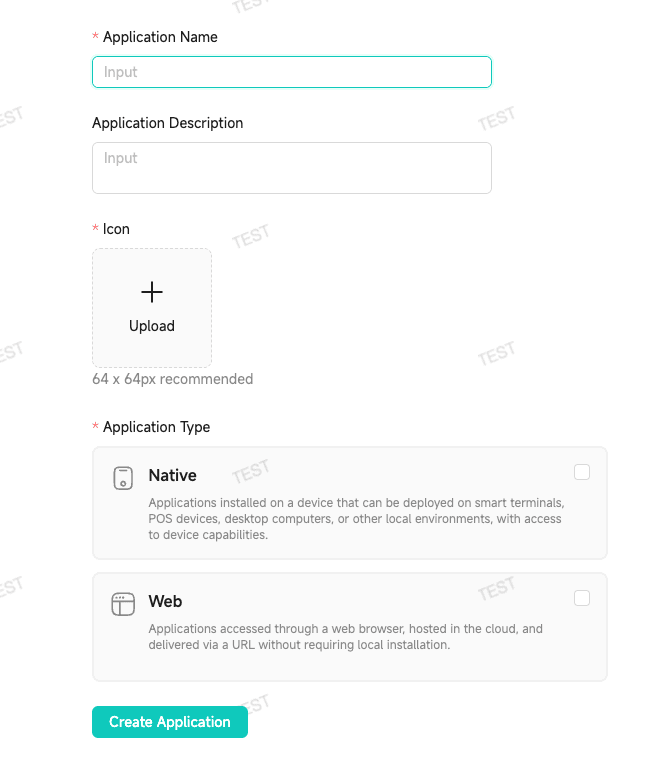
- Fill in application information:
- Application Name: Give your application a recognizable name
- Application Description: Briefly describe the purpose and functionality of your application
- Icon: Upload an icon to help identify your app in the list
- Application Type: Choose based on your business scenario
- Native: Native application, for in-store payment and terminal integration scenarios
- Web: Web application, for online e-commerce and web payment scenarios
- Payment Integration: Choose how payments are processed (multiple selections allowed)
- Local Integration: Payment interactions happen locally on the device
- Cloud Integration: Payments are initiated and managed via cloud APIs
- App Distribution Channels: Select the app distribution channels you need, e.g., SUNMI App Store
Obtain Sandbox Parameters
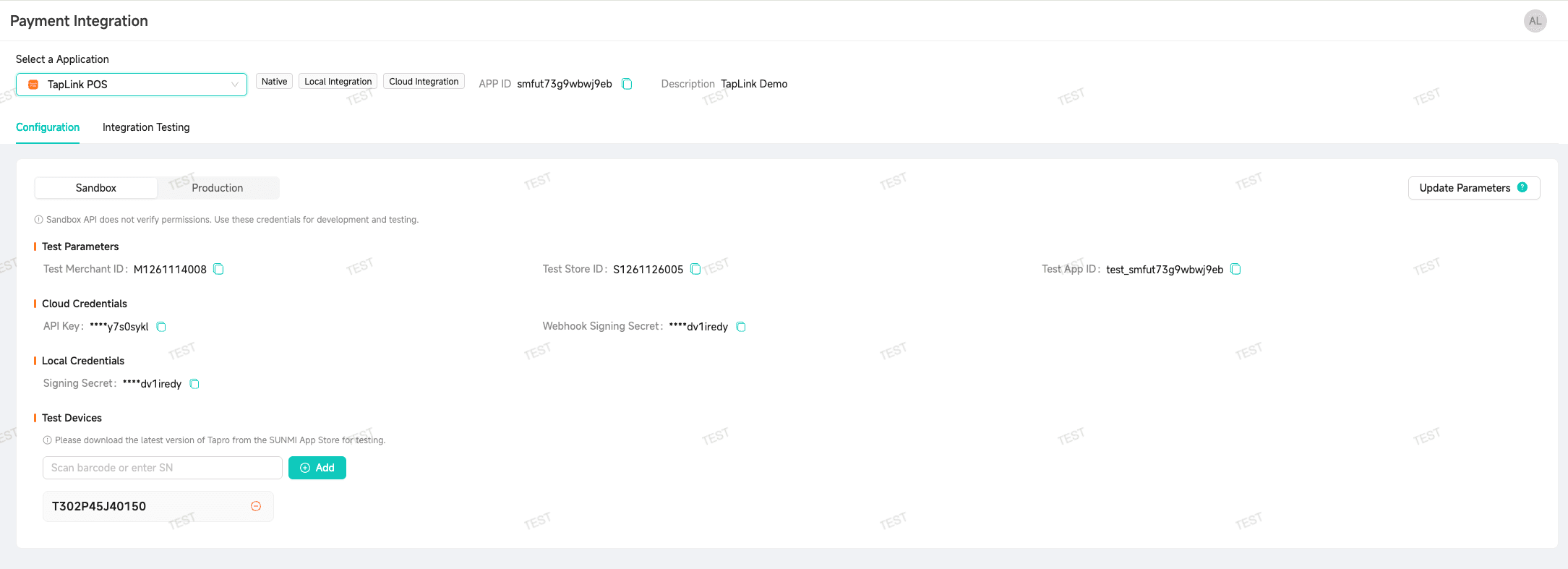
After creating the application, go to the “Payment Integration” page, select your application, and view the automatically generated sandbox parameters under the “Configuration” tab:
-
Test Parameters
- Test Merchant ID: Merchant ID for sandbox testing
- Test App ID: Application identifier dedicated to sandbox environment
-
Cloud Credentials (for Cloud Integration)
- API Key: Used for cloud API authentication
- Webhook Signing Secret: Used to verify Webhook callback signatures
-
Local Credentials (for Local Integration)
- Signing Secret: Used for local device-side signature verification
-
Test Devices
- Scan barcode or enter device SN to add test devices
Security Tips:
- Do not commit API Key, Signing Secret, or other credentials to code repositories
- Do not hardcode credentials in client code
- Use environment variables or a key management service for storage
- Rotate credentials regularly
Complete! After completing pre-development preparation, you can start Sandbox Environment Testing.
FAQ
What if I forget the API Key or Signing Secret?
Log in to the Connect portal, go to “Payment Integration” → select your application → “Configuration” tab to view your credentials.
Are sandbox environment and production environment parameters the same?
No. Sandbox and production environments use different App IDs, Merchant IDs, and credentials. You need to switch to production parameters before going live.
What is the difference between Local Integration and Cloud Integration?
- Local Integration: Payment interactions happen locally on the device, suitable for in-store POS scenarios
- Cloud Integration: Payments are initiated and managed via cloud APIs, suitable for e-commerce platforms, online stores, etc.
Can I select multiple Payment Integration methods?
Yes. If your business involves both in-store device payments and online payments, you can select both Local Integration and Cloud Integration. The system will generate the corresponding credentials for each.
Can I create multiple applications?
Yes. You can create multiple applications for different business scenarios or clients, each with independent credentials and permission configurations.