Production Environment Configuration
After passing sandbox environment test acceptance, you have obtained production environment API access permissions. Now you need to configure production environment parameters and complete merchant onboarding.
Application Security Settings
You have passed sandbox environment acceptance testing, now you can configure production environment application security settings:
-
Go to Payment Integration Page
- Log in to the Connect portal
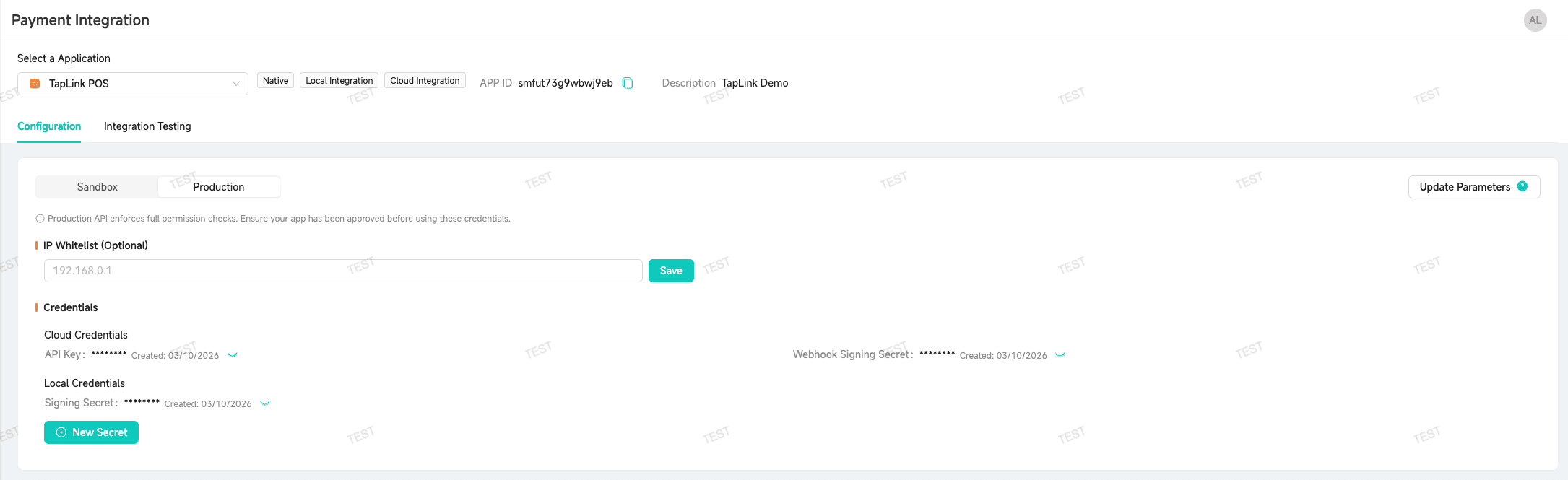
- Go to “Payment Integration” → select your application → “Configuration” tab
- Switch to the “Production” section to view production environment security settings
-
Configure Authentication Credentials
- API Key: Generate or regenerate the API Key for cloud API authentication
- Webhook Signing Secret: Used to verify the authenticity of Webhook callback notifications
- Signing Secret: Used for local device-side signature verification (Local Integration)
- Clicking “New Secret” will regenerate the credential, and the old credential of the same type will be replaced and immediately invalidated. Make sure to update your application configuration promptly.
-
Configure IP Whitelist (Optional)
- Once configured, the SUNBAY platform will verify the source IP of each API request against the whitelist. Requests from IPs not on the whitelist will be rejected.
- Enter the outbound IP addresses of your servers
- Supports adding multiple IP addresses
- Securely Store Credentials
- Use environment variables or key management services to store sensitive information
- Do not hardcode credentials in code or commit to code repository
- Consider using AWS Secrets Manager, HashiCorp Vault, or similar key management tools
Credential Security:
- If credential leakage is discovered, immediately regenerate them in the Connect portal
- It is recommended to regularly rotate credentials to improve security
Apply for Formal Merchant
Operating Entity: Typically handled by your payment service provider. If you are the payment service provider yourself, log in to the Copilot portal to complete the configuration directly.
Contact your payment service provider to apply for a formal merchant for your application and activate payment functions:
-
Submit Merchant Information
- Business registration certificate
- Business owner identification
- Business scenario description
- Expected transaction volume
-
Activate Payment Channels
- Service provider will activate corresponding payment channels according to your business needs
- Some payment channels may require additional qualification review
- Service provider will assist you in completing channel merchant application and parameter configuration
-
Obtain Merchant Parameters
- After service provider completes configuration, you will obtain formal merchant number and payment parameters
Merchant review time varies by payment channel, usually takes 1-3 business days. You can continue to improve code and documentation during the review period.
Complete! After completing production environment configuration, you can proceed with Go-Live.
FAQ
When can production environment parameters be obtained?
After passing sandbox environment test acceptance, you can configure and obtain production environment parameters in the “Payment Integration” tab of the application details page.
Among them, the formal merchant number needs to be obtained after the service provider completes merchant registration for you. Other development parameters (such as authentication keys, Webhook signing, etc.) can be configured by yourself.
Does test environment code need to be modified?
No need to modify code logic, just switch environment variables from test parameters to production parameters.
How to reset production environment keys?
Regenerate them in the Connect portal under “Payment Integration” → select your application → “Configuration”. Note that old credentials will be invalidated immediately after regeneration, so make sure to update your application configuration promptly.
How long does merchant review take?
Merchant review time varies by payment channel, usually takes 1-3 business days. Please consult your payment service provider for specific time.
Can multiple payment channels be used simultaneously?
Yes. You can activate multiple payment channels according to business needs, the system will automatically route to the corresponding channel according to transaction type.
Can testing be done in production environment?
Small amount real transaction testing can be done, but please note that all transactions in production environment will incur real fees. It is recommended to refund promptly after testing is complete.